Give access
Choose the company and account you want to connect, then grant the required permissions.
Connected to your work
Connect the tools your team already uses: customer messages, advertising, POS, mail and accounting. Bring the information together in Planerix without moving all your work to a new system.

See which sources are connected, when they last updated and which indicators they provide. Check the status of your accounting, payment, restaurant and marketing connections in one place.
Choose a source and complete its setup to start using the data. Google accounts require your permission; local iPhone calendars stay on your device.
 01
Read and reply to customer messages from the app. Keep the conversation history available to your team and assign the follow-up.
 02
Get a summary of a long conversation, understand what the customer needs and prepare a reply. See which requests need attention first.
 03
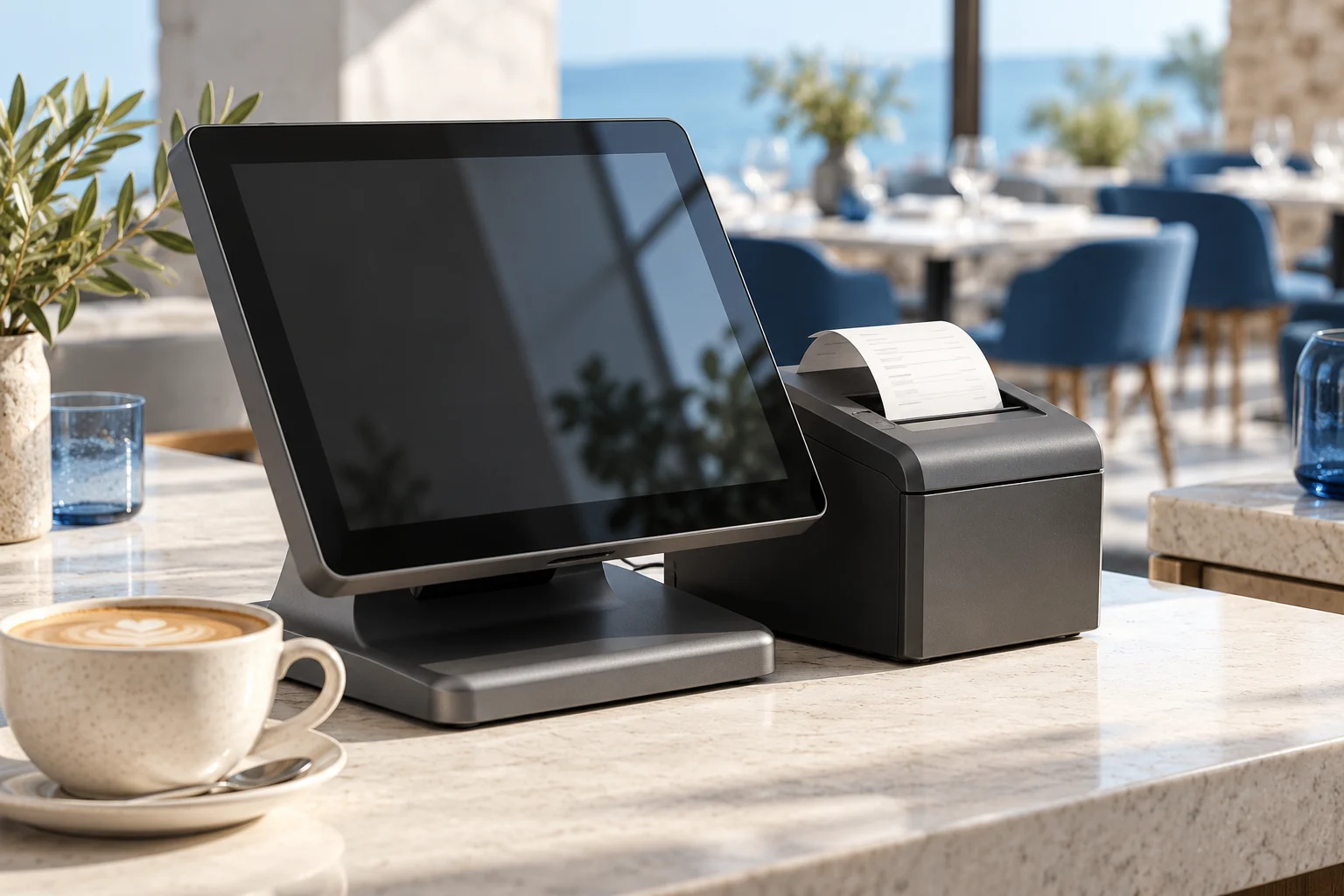
Bring sales and orders from your POS into Planerix. Compare locations, see which items sell and track changes in revenue and margins.
 04
Compare campaign spend, reach, clicks and conversions where available. See how performance changes over time alongside your business indicators.
Review which records are available, who owns the data and what actions each connection supports.

Selected mailbox and threads from the authorized account.
Planerix owns tasks, projects and goals created in the workspace.

Sales and menu data from supported POS reports. The POS owns the underlying transactions.

Orders and reservations from connected venues.

Guest messages from the authorized professional account.

Spend and platform-reported conversions. Matched orders are shown separately.
Fiscal job status and the device receipt number after confirmation.

Public services and prices from your Booksy profile. Booksy remains the source for the published list.

Proposed scope: studio messages and client context.

Merchant payment features have a separate rollout. Beauty can record funds already received.
Checkout document and device acknowledgement for the selected studio.
Authorized invoice reading for the chosen company. The demo uses sample invoices.

Invoices from an authorized account. Accounting software owns accounting figures.

Agreed accounting registers from an export file.

Selected files from a company library or drive.

Selected files from a company library or drive.
How to connect your systems
Choose the company and account you want to connect, then grant the required permissions.
Decide which records and periods you need. We check what the source can provide and identify any gaps.
Compare the first imported records with the original system before using them in reports and daily work.
Tell us what takes too much time today. We’ll show you the relevant tools and agree on a useful first step.
Book a demo